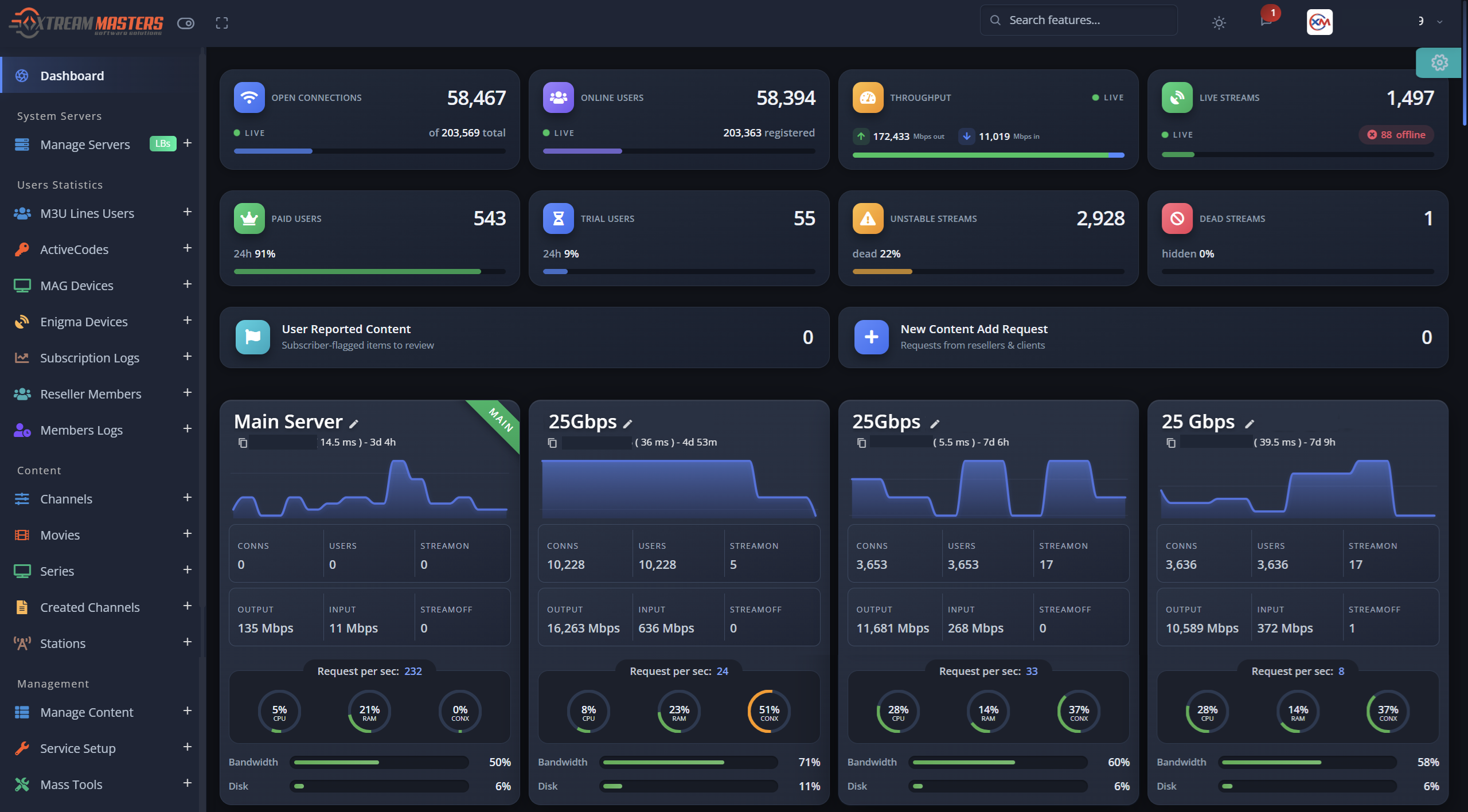
Table of Contents
- Why Intro Panel Operators Could Not Leave Before
- The Intro Protocol Endpoint on Xtream-Masters
- Watch the Migration Video
- Before You Begin
- Step 1: Migrate the Intro Database
- Step 2: Set the ActiveCode Keys
- Step 3: Point Intro Apps and Boxes at the New Panel
- Step 4: Bring Servers Online and Test
- How ActiveCode Pairing Works After Migration
- Running Intro Devices and New Apps Side by Side
- Cutting Over Without Downtime
- Endpoints and Settings Reference
- Troubleshooting
- FAQ
Why Intro Panel Operators Could Not Leave Before
If you run an Intro IPTV panel, you almost certainly have hundreds or thousands of devices in the field that were built for it: branded Android apps, set-top boxes and firmware that talk to the Intro API and activate with an ActiveCode. That install base is the reason most Intro operators stay put even when the panel itself is holding them back. A database migration is easy. Getting every subscriber to install a new app, re-enter a code and re-pair a device is not, and the support load of a forced app switch is enough to make anyone keep paying for a panel they have outgrown.
That trap is now gone. Xtream-Masters implements the Intro panel ActiveCode protocol as a native compatibility endpoint. Apps and boxes that already speak the Intro protocol keep working on the new panel exactly as they did, with no app change, no re-activation campaign and no new APK to distribute. Only the request and response format follows the Intro protocol. The ActiveCode lines, the device pairing and the streaming URLs underneath are the same ones the standard ActiveCode Player API uses, so your migrated users, your existing devices and any new apps you build later all live on one panel.
The Intro Protocol Endpoint on Xtream-Masters
There is one address to remember. Every Intro-protocol app or box you have gets pointed at it.
your.dns is the panel main DNS. stream_port is the streaming port, 8080 by default. When HTTPS is enabled on the panel, use https:// and the HTTPS streaming port, 8443 by default.
Note that this lives on the streaming port, not the admin panel port. The admin panel answers on port 7709 by default and has nothing to do with client devices. If an Intro box is pointed at the admin port it will never connect, which is the single most common mistake on the first attempt.
Responses from this endpoint are encrypted, and the app must hold the same key to read them. That key is set in one place in your new panel, covered in Step 2. Full protocol details are in the ActiveCode API documentation, Intro protocol section.
Watch the Migration Video
The database side of an Intro migration is the same built-in flow used for every other panel: the Migrate Database button, two options behind it, and an admin password reset to finish. The short version is here, and the Intro-specific steps that follow the database move are in the sections below.
How to Migrate Your IPTV Panel Database to a New Server, the Xtream-Masters Migration Tutorial
- The Migrate Database button in the Master CMS Panel and the two options behind it
- Remote connection versus placing a
backup.sqlfile on the new server - Finishing with MasterAdmin, Reset Admin Password, then bringing servers online
Before You Begin
The destination panel must already be installed and reachable on the new server, because the Migrate Database button lives on that server's page in the Master CMS and does not exist until the install is finished.
Prerequisite: install Xtream-Masters on a new server first
Add your server in the Master CMS Panel with your xm: account, enter the SSH details and wait for the install to complete. The official tip is a fresh Ubuntu 24.04 server, and the install itself takes a couple of minutes. Do this on a separate server so your Intro panel keeps serving subscribers throughout.
The official step-by-step migration FAQ, with the install and migration videos, is at How to migrate to Xtream-Masters OTT Panel.
Then gather these before you start:
- Your Intro panel's database credentials: host, port, database name, username and password.
- The ActiveCode decryption key your apps and boxes were built with. This is the key that has to go into the new panel. If a developer built your app, ask them for it now, not on cutover day.
- SSH access to the Intro server, for the database export.
- SSH or SFTP access to the new server, to place the backup file in
/root. - One Intro device you can test with, ideally a real box from your stock, plus one Intro app install, so you can verify both before any subscriber is touched.
- Control of your DNS, so the cutover is a record change rather than a device-by-device reconfiguration.
Step 1: Migrate the Intro Database
In the Master CMS Panel, open your new server and click Migrate Database. Two options are offered, and they produce an identical result.
A Remote Connection
- Enter the Intro database details: host, port, name, user, password.
- Pick your source panel.
- Click Migrate.
The Intro panel keeps serving subscribers throughout, because reading its database does not interrupt streaming.
B Database Backup File Recommended
- Export the database on the Intro server:
mysqldump -u USER -p DB_NAME > backup.sqlFor a large database, keep the export consistent without locking the live panel:mysqldump --single-transaction --quick --routines -u USER -p DB_NAME > backup.sql
- Upload it to the new server as
/root/backup.sql, or/root/backup.sql.gzif compressed:scp backup.sql root@NEW_SERVER_IP:/root/backup.sql - Pick your source panel, then click Migrate.
When the success message appears, click MasterAdmin, then Reset Admin Password, set a new password, and log in to the panel admin on port 7709 or the custom port you set in the Master CMS dashboard. The admin account has to be reset explicitly, which is why you cannot log in before this step. That is expected, not a fault.
rm /root/backup.sql. That file contains every ActiveCode you have issued, and there is no reason to leave a plain-text copy on a production server.
Users, lines, bouquets, streams, movies, series, categories, resellers and settings all move. On-disk VOD files do not, because every panel stores them in a different folder. The full database migration guide covers the VOD move, the large-database restore path and every command in one place, so this article stays focused on the Intro-specific steps.
Step 2: Set the ActiveCode Keys
Two settings in the panel admin power the whole ActiveCode flow. For an Intro migration the first one is the one that matters, and it has to match what your devices already carry.
1 ActiveCode Decryption Key
Open General Settings, then the General tab, and fill in ActiveCode Decryption Key. Responses from the Intro protocol endpoint are encrypted with this key, and the app or box must use the same key to read them. Set it to the key your existing Intro apps and boxes were built with. If it differs by a single character, every device will connect and then fail to read the response, which looks like a dead server from the subscriber's side.
2 Unique Password
Open General Settings, then the Streaming tab, and set Unique Password. This is the additional per-ActiveCode password an app retrieves and decrypts, and then uses as the password half of its credentials on streaming URLs. It is part of the standard ActiveCode flow on this panel and applies to new apps built on the Player API as well as to Intro devices.
Step 3: Point Intro Apps and Boxes at the New Panel
This is the whole Intro-specific part of the migration, and it is short.
1 Set the server address on the device
Wherever your app or box stores its panel address, set it to the main DNS, then the streaming port, then the Intro protocol path:
HTTP, default streaming portNothing else in the app has to change. The ActiveCode the subscriber already has is the one they keep using.
2 Or, better, change nothing on the device at all
If your Intro apps and boxes already point at a hostname you control, and that hostname currently resolves to the Intro server, you do not touch the devices. You test the new panel by IP and port, then move the DNS record to the new server and the whole install base follows it. This is why the cutover section below recommends testing against the raw IP first and switching DNS last.
Step 4: Bring Servers Online and Test
With the data in place and the keys set, start the streaming infrastructure.
Main server
- Open Manage Server and edit the main server.
- Set the SSH password.
- Click Main Server Option, then Restart Service.
Load balancers
- Edit each balancer and set its SSH password.
- Click LB Server Option, then Re-install Balancer. Allow up to two minutes each.
Test with a real Intro device
Take the test box and the test app install from your checklist and point them at the new panel by IP and streaming port. Confirm, in this order:
- The device connects and reads the response, which proves the decryption key matches.
- The ActiveCode activates and the channel list loads, which proves the lines migrated and the code is valid.
- A live channel plays, which proves the main server service and DNS fields are right.
- A movie and a series episode play, which proves VOD files were moved and owned correctly.
- EPG loads, which proves the EPG sources migrated with the settings.
Each check isolates a different layer, so a failure tells you exactly where to look. If you skip to "does it play" and it does not, you are guessing among five causes.
How ActiveCode Pairing Works After Migration
ActiveCode on Xtream-Masters has two security layers. Understanding them explains what your migrated devices will do on first contact.
| Layer | What it does | Required? |
|---|---|---|
Device IDmac parameter |
Pairs a device to an ActiveCode on first authentication. From then on, the same Device ID must appear on every API call, every streaming URL and every EPG URL for that code, and only that device works. Sharing a code does nothing for the second device. | Yes |
Application lockappname parameter |
Binds the ActiveCode to your app. Even with the right Device ID and code, streams are only reachable through your authorised application, which stops credentials from working in a cloned or third-party player. | Optional, recommended |
Your ActiveCode lines migrate with the database and the same codes are used on the new panel, so subscribers keep the code they have. When a migrated device authenticates for the first time, its Device ID is paired to its code, and from that moment the code is locked to that device. The Device ID has to be stable across reinstalls and identical on every request, which Intro apps and boxes already handle because that is how the Intro protocol works too.
Running Intro Devices and New Apps Side by Side
The Intro protocol endpoint exists for the devices you already have in the field. It does not lock you into the Intro format for anything new. New apps use the standard ActiveCode Player API at player_api.php with the mac Device ID on every URL, and both protocols work at the same time on the same panel against the same ActiveCode lines.
That gives you a migration path for the apps themselves, on your own schedule:
- Day one: every existing Intro device keeps working through the Intro endpoint. No subscriber notices anything.
- Whenever you are ready: issue new subscribers a branded ActiveCode app built on the Player API. Existing subscribers are not touched.
- Eventually, or never: retire Intro devices as they age out. There is no forced switch, because both endpoints stay available.
If you want a ready-made, store-listed app for the new subscribers rather than building one, the ActiveCode IPTV player app ships pre-wired to this panel with the Device ID applied to every URL, ActiveCode plus username and password login, application lock support and decryption handled internally. If you would rather build, the ActiveCode API documentation has every endpoint and drop-in decryption code for PHP, Java, Kotlin, Node.js and Dart.
Cutting Over Without Downtime
Because you migrated to a separate server, the Intro panel never stopped. Use that.
- Install, migrate and set keys while the Intro panel serves normally.
- Test a real Intro box and a real app install against the new server by IP and streaming port, walking the five checks in Step 4.
- Spot-check the data: user count, line count, a handful of ActiveCodes and bouquets against the live Intro panel. It is still running, so the comparison is free.
- Check the DNS fields on the main server under Servers: Users CDN, Private Users CDN and Proxy IP or DNS [All] must point at the main server. A device that loads the list while nothing plays is nearly always one of these three.
- Lower your DNS TTL a day ahead, then move the record to the new server. Every Intro device that points at that hostname follows it, with no action from the subscriber.
- Keep the Intro server alive for a few days. One more billing cycle buys a rollback that costs nothing to use.
Endpoints and Settings Reference
Everything from this guide in one table.
| What | Where or value |
|---|---|
| Intro protocol endpoint | http://your.dns:stream_port/iptv/V6APK/API-V6APK.php |
| Intro endpoint, HTTPS enabled | https://your.dns:https_stream_port/iptv/V6APK/API-V6APK.php |
| Streaming port | 8080 HTTP, 8443 SSL, by default |
| Admin panel port | 7709 by default. Never point a device here. |
| ActiveCode Decryption Key | General Settings, General tab. Must match the key inside your apps and boxes. |
| Unique Password | General Settings, Streaming tab |
| Standard ActiveCode Player API | http://your.dns:stream_port/player_api.php?mac={deviceid}&username={ActiveCode}&password={DecryptPassword} |
| Encrypted password fetch | http://your.dns:stream_port/player_api.php?action=getactivecodepass |
| Live stream URL | http://your.dns:stream_port/live/{ActiveCode}/{DecryptPassword}/{stream_id}.ts?mac={deviceid} |
| VOD stream URL | http://your.dns:stream_port/movie/{ActiveCode}/{DecryptPassword}/{vod_id}.mp4?mac={deviceid} |
| Series episode URL | http://your.dns:stream_port/series/{ActiveCode}/{DecryptPassword}/{episode_id}.mp4?mac={deviceid} |
| XMLTV EPG | http://your.dns:stream_port/xmltv.php?mac={deviceid}&username={ActiveCode}&password={DecryptPassword} |
| Application lock | Append &appname={YourAppName} to every URL, consistently |
| Export Intro database | mysqldump -u USER -p DB_NAME > backup.sql |
| Backup file location | /root/backup.sql or /root/backup.sql.gz, on the new server |
| Delete dump after migrating | rm /root/backup.sql |
| VOD destination | /home/xtreamaster/movies/, then chown -R xtreamaster:xtreamaster /home/xtreamaster/movies/ |
| Start main server | Manage Server, Main Server Option, Restart Service |
| Start load balancer | Manage Server, LB Server Option, Re-install Balancer |
| Official migration FAQ | How to migrate to Xtream-Masters OTT Panel, ottpanel.tv FAQ |
| Full protocol documentation | ActiveCode API docs, Intro protocol section |
Troubleshooting
"The Intro app connects but shows an error or an empty list"
The device reached the server but could not read the response, which means the ActiveCode Decryption Key in General Settings does not match the key inside the app. Compare them character by character, including case and trailing spaces. This is the number one cause of a failed Intro migration and it has nothing to do with the database.
"The box cannot connect at all"
Check the address. It must be the main DNS, the streaming port and the path /iptv/V6APK/API-V6APK.php. Pointing at the admin port 7709, using https:// against the HTTP port, or dropping the path are the usual reasons. Confirm the main server service was restarted after migration.
"The code says invalid or expired after migration"
Check the line exists in the new panel admin and that its expiry date survived the import. If a whole batch is missing, suspect a truncated dump: re-export with --single-transaction --quick, confirm the file ends with the "Dump completed" line, and migrate again.
"The list loads but nothing plays"
Check in this order: main server service restarted, load balancers online, SSH passwords set on both, and the three DNS fields on the main server, Users CDN, Private Users CDN and Proxy IP or DNS [All], all pointing at the main server. A list that loads while streams fail is infrastructure state or DNS, not data.
"Movies and series show but do not play"
The database rows migrated but the files did not. Move them into /home/xtreamaster/movies/ on every server that stores VODs and fix ownership with chown. The VOD section of the database migration guide has the per-panel source paths and the one thing never to do afterwards, which is a mass re-encode.
"A subscriber's code works on one device but not their second one"
That is the Device ID pairing doing its job. An ActiveCode is bound to the first device that authenticates with it, and only that device can use it from then on. If the subscriber legitimately replaced a device, handle it from that line in the panel admin rather than handing out a second code.
"Migration completed but I cannot log in to the admin"
Expected. Click MasterAdmin, then Reset Admin Password, and log in on port 7709 or your custom port.