Preloader
Installation Guide

How to Install Xtream UI R22F on Ubuntu 18.04

A complete, beginner-friendly walkthrough to getting your IPTV panel up and running.


Xtream UI remains one of the most popular free choices for managing IPTV services. If you are just starting out and don't have a huge budget for premium panels, this is a great place to start. While it might seem complicated at first, installing it is actually quite straightforward if you follow the steps below.

1Getting Your Server Ready

Before we type a single command, you need to make sure your environment is correct. Xtream UI is very specific about what it needs.

  • Operating System: You strictly need Ubuntu 18.04 LTS. Do not try this on Ubuntu 20.04 or 22.04, as the dependencies for the free version of Xtream UI are quite old and won't work on newer systems.
  • Tools: You will need PuTTY (to run commands) and WinSCP (to transfer files) installed on your computer.

2Enabling Root Access

Most server providers today give you a custom username (like ubuntu or azureuser) instead of the root user for security reasons. However, Xtream UI needs full root access to install correctly.

If you aren't logged in as root, login with your default user and run:

sudo -i

Now, let's enable direct root login so you don't have issues later. Open the SSH config file:

nano /etc/ssh/sshd_config

Look for the line that says PermitRootLogin prohibit-password or similar. Change it to:

PermitRootLogin yes

Press CTRL+X, then Y, then Enter to save. Finally, restart the SSH service and set a root password:

service sshd restart passwd root

3Running the Installation Script

We will use a mirror script that automates downloading all the necessary files. Since the original Xtream Codes servers are down, these mirrors act as the source.

Copy and paste this entire command into PuTTY:
apt-get update ; apt-get install libxslt1-dev libcurl3 libgeoip-dev python -y ; wget https://xtream-masters.com/guide/resources.php?file=xui/install.py ; sudo python install.py

Once the script starts, you will see a menu. Here is what to do:

  1. Type MAIN and press Enter (this installs the Admin panel).
  2. When asked to configure MySQL, choose Y (Yes).
  3. It will ask for a MySQL password. Type any password you like (e.g., 12345) and save this password safely.

When it finishes, it will show you your panel URL, usually http://your-ip:25500.

4Updating to Version R22F

The default installer usually installs version R22E. To get the latest features and bug fixes (Version R22F), you need to run an update command immediately after installation.

apt-get install unzip e2fsprogs python-paramiko -y ; rm -rf /home/xtreamcodes/iptv_xtream_codes/admin ; rm -rf /home/xtreamcodes/iptv_xtream_codes/pytools ; wget "https://xtream-masters.com/guide/resources.php?file=xui/update.zip" -O /tmp/update.zip -o /dev/null ; unzip /tmp/update.zip -d /tmp/update/ ; cp -rf /tmp/update/XtreamUI-master/* /home/xtreamcodes/iptv_xtream_codes/

After the files are copied, run this final cleanup command to set permissions and restart services:

rm -rf /tmp/update/XtreamUI-master ; rm /tmp/update.zip ; rm -rf /tmp/update ; sudo chmod +x /home/xtreamcodes/iptv_xtream_codes/nginx/sbin/nginx ; sudo chmod +x /home/xtreamcodes/iptv_xtream_codes/nginx_rtmp/sbin/nginx_rtmp ; /home/xtreamcodes/iptv_xtream_codes/start_services.sh

5Essential Fixes (Don't Skip This!)

There is a known bug where the GeoLite2.mmdb file (used for identifying user countries) gets corrupted or deleted, causing streams to stop working. Run this fix to download a fresh copy and lock it so it cannot be deleted:

sudo chattr -i /home/xtreamcodes/iptv_xtream_codes/GeoLite2.mmdb && sudo wget -q https://xtream-masters.com/guide/resources.php?file=xui/GeoLite2.mmdb -O /home/xtreamcodes/iptv_xtream_codes/GeoLite2.mmdb && sudo chattr +i /home/xtreamcodes/iptv_xtream_codes/GeoLite2.mmdb && sudo /home/xtreamcodes/iptv_xtream_codes/start_services.sh
Congratulations! You now have a fully working Xtream UI Admin Panel. You can log in using the default credentials: User: admin / Pass: admin.

Panel Installed? But Is It Secure?

Installing Xtream UI is just the first step. Unfortunately, because the original project was abandoned, it lacks modern security patches. This leaves your business vulnerable to hacking and DDoS attacks.

Don't risk your investment. Our Xtream-Masters IPTV Admin Panel is the modern, secure successor. It installs in minutes, comes with built-in DDoS protection, and is fully supported.

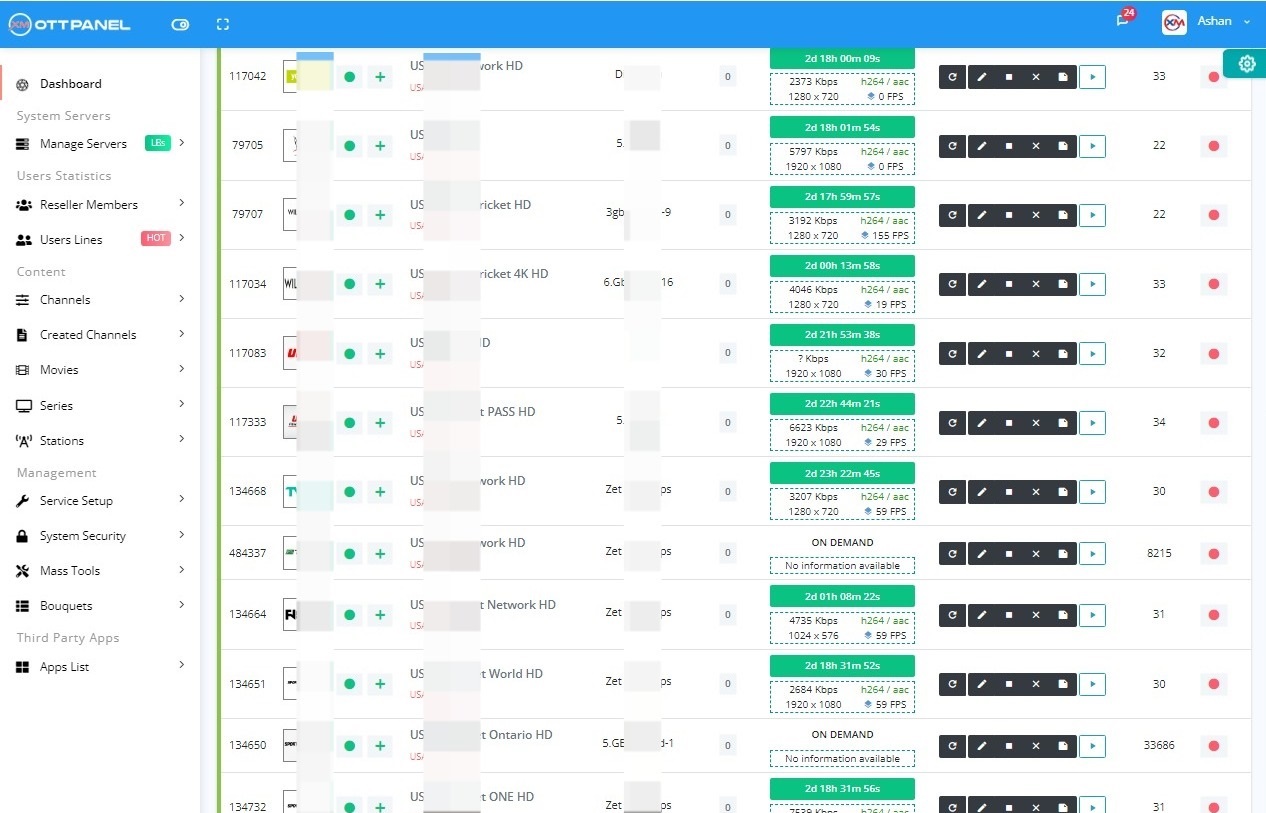
Professional Admin Panel

IPTV Admin Panel Auto Installer

Fast Installation, Stability, Security & Optimized Performance

Fast Installation, Stability, security and minimum resource using with advanced tools is key strengths of the Xtream-Masters OTT Panel, enabling it to stay ahead in the competitive landscape.

IPTV Admin Panel €39.99/Month
  • Panel license includes main server + Unlimited LoadBalancers
  • Minimum 32 GB RAM server required for main server
  • Run all streams to load balancers for best results
  • Operating Systems: Ubuntu 18.04, 20.04, or 22.04
  • Advanced Anti-DDoS & Security tools included

Start Your IPTV Business Today

Get Your License Now
Competitive Advantage

Why Choose Xtream-Masters

Our goal is to make our core system more secure and stable than any other panel in the market. Built from scratch with super-optimized code.

Secure

DDoS Protection

Self-built DDoS and other kind of hacking attack protection so you can work without any fear of attacks.

  • Self-built defense
  • Hacking protection
  • Work without fear
Smart

Auto Issue Fixing

If stream has problems such as voice loss, video lost, or loops, system will auto detect and fix it within minutes.

  • Auto audio/video repair
  • Loop detection
  • Super stability
Performance

Optimized Core

Built from scratch with super-optimized code to save RAM and CPU during high events, giving us a competitive advantage.

  • Low resource usage
  • High load handling
  • Built from scratch

Core Features & Capabilities

The perfect solution for those facing a lack of features, technical support, or unstable software panels.

🚀

Optimized Performance Core

Enhanced binary and optimized code to minimize RAM and CPU consumption, ensuring super stability for handling large event loads with ease.

🗂️

Category Management

Allow users to modify categories through reordering, renaming, and adding/removing options in reseller and client panels.

👁️‍🗨️

Real-time VideoLog

Track connection utilization and, upon surpassing the limit, present the VideoLog with live data instead of showing a playback error.

🔑

DRM on Load Balancer

With IPTV and DRM integrated, you can easily install DRM on your IPTV load balancer with a single click and run DRM IPTV simultaneously.

📊

Smart Stream Analyzer

On-demand channels identify source problems, and auto-correct audio interruptions by adjusting probsize.

🤝

Official Reseller API

Grow your enterprise by integrating a specialized API designed for resellers to streamline order processing.

⚙️

Client Subscription cPanel

A personalized control panel for each client, enabling clients to manage content and update passwords independently.

🛡️

Server Guard Security

Every server benefits from enhanced security measures to defend against playlist probing, brute force attacks, and Layer 7 DDoS.

📂

Auto M3U Content Sync

Automatically add complete categories to your server through your provider's M3U link. especially useful for managing event categories.

☁️

xDrive Encrypted Cloud Backup

Automated xDrive Encrypted Cloud Backups ensure you can restore your panel and data instantly if the server fails.

Support Center

Frequently Asked Questions

The following notes will help you find answers to common questions. Please review before contacting support.

All Questions
General
Technical
01

Can move from 'XYZ' Panel to Xtream-Masters OTT Panel?

Simple answer is YES, We have an automated database migration system that supports migrations for XtremeUI, XUI, NXT, Streamcreed and other panels.

Existing server migration:

  1. Take backup of your database: mysqldump -u [uname] -p db_name > db_backup.sql
  2. Download db_backup.sql file to your local computer.
  3. Reinstall your server with Ubuntu OS (18.04, 20.04 or 22.04).
  4. Login to Master CMS cPanel and add the server for installation.
  5. Once installed, upload db_backup.sql to /home/xtreamaster/wwwdir.
  6. Use the Migrate button in cPanel, select Migrate by URL, and insert file URL.
  7. After migration, reset admin password and update tables in settings.

New server migration:

  1. Add main server for installation in CMS cPanel.
  2. Click Migrate button, insert database credentials or use SQL file URL.
  3. After migration, reset admin password and update tables.
02

What do I require to make an IPTV Server?

To create your own admin panel, consider the following:

  • Solid understanding of software and willingness to learn.
  • Dedicated servers (we do not provide these).
  • Reliable IPTV software for streaming and channel restreaming.

If you're just starting, we recommend working as a distributor first to build a client base before investing in costly servers.

03

Can you give support to setup my server?

While we offer video tutorials to help you understand functions, we assume you have basic software knowledge. We recommend exploring the panel and referencing tutorials. For specific technical issues or questions about our services, please contact us.

04

Technical problem support

We recognize clients may face complex technical issues. We offer a premium support team ($50/hour) to resolve all issues and ensure smooth service operation with proper setup.

05

Are Xtream-Masters IPTV Panels Secure?

Yes. We have written code very carefully and implemented a secure system to withstand various hacking attacks. Our customers have used our service for a long time without facing security issues.

Ready to Start Your IPTV Business?

Join hundreds of satisfied customers using our professional IPTV Admin Panel

Purchase License - €39.99/Month Download Review